Writing & mentions
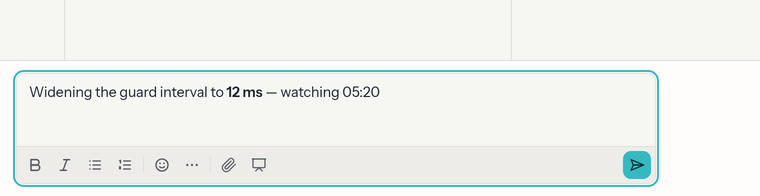
The composer is a rich-text editor. You type normally and it formats as you go; behind the scenes it stores clean Markdown, so your messages stay portable.
Formatting
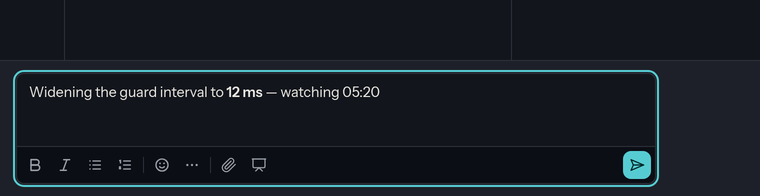
A formatting toolbar sits above the composer:
- Bold, italic, bullet list, numbered list
- More (…) opens the rest: Heading 1/2/3,
strikethrough,inline code, code block, and quote. - An emoji picker — or just type a
:shortcode(like:tada:) and pick from the suggestions. - Saved messages (the bookmark) — your reusable snippets; see below.
- Queue — agent channels only: hold the message until the agent finishes its turn. See Agent channels.
You can also type Markdown directly (**bold**, - item, > quote,
`code`) and it renders live. Fenced code blocks are syntax-highlighted,
a ```mermaid block renders as a diagram, and pipe-syntax tables render
as real tables. A bare link to a GitHub or GitLab pull request, issue, or
commit is compacted to a tidy chip. So is a link to another chat message —
press ⌘/Ctrl + / to search for one and insert it, or hover a message and
click the copy icon next to its timestamp, then paste: either way it
renders as a small pill naming the author — hover it to read what they said,
click it to jump there. You can also select text inside a message and
click the floating Copy link chip: that link carries the quote, and
opening it flashes the selected passage. (Normal copying — ⌘/Ctrl + C
or the right-click menu — is untouched.)
Pasting Markdown works too: paste a chunk of Markdown and its headings,
lists, links, tables, and code blocks arrive as real formatting, not literal
## characters. Prefer the raw text? Paste with Ctrl/⌘ + Shift + V, or press
Ctrl/⌘ + Z once to undo the conversion. Copying out of the composer gives
you Markdown back, so text round-trips cleanly.
Saved messages
Text you send often — a standing instruction to your agent, a weekly check-in — can live on the Saved messages button (the bookmark) in the toolbar. Write the message as usual, open the list, choose Save what's in the composer… and give it a label. From then on, open the list and click an entry to drop it into the composer, formatting and all; the ✕ beside an entry deletes it. Before you've saved anything the list just says Nothing saved yet. Write a message, then save it here to reuse it.
Saved messages are yours alone — nobody else sees them — and one saved from a channel's composer is offered in that channel. You can keep up to 50, each with a label of up to 80 characters and a body of up to 4,000.
Keyboard shortcuts
Use ⌘ on macOS or Ctrl elsewhere:
| Shortcut | Action |
|---|---|
| ⌘/Ctrl + Enter | Send the message |
| ⌘/Ctrl + B | Bold |
| ⌘/Ctrl + I | Italic |
| ⌘/Ctrl + K | Add/edit a link on the selected text |
| ⌘/Ctrl + Shift + A | Attach a file |
| ⌘/Ctrl + / | Reference a chat message — search, pick, and a pill linking to it lands at your cursor |
(For safety, links are limited to http, https, and mailto addresses.)
Clicking a link that leads outside the chat app — a website, a card or
commit chip — opens it in a new tab, so your conversation stays put.
In-app links (#channel chips, message pills, help pages) open in place.
In the @, #, @/, and : autocomplete popups, use ↑/↓ to move,
Enter or Tab to choose, and Esc to close.
Mentioning people — @
Type @ and start a name to bring up the channel's members. Keep typing to
filter, then pick one (arrow keys + Enter, or click). Their name appears as a
chip in your message.
Mentioned people get notified. They get a mention badge in their sidebar, and — if they're away and the server has email set up — an email with a link to the message. You won't notify anyone by re-saving unchanged text, and you're never notified about your own mentions. See Mentions & notifications.
Referencing channels, cards & commits — #
Type # to reference things across the workspace. The suggestions come
in sections:
- Channels — public channels and the ones you're in (never DMs).
Clicking a
#channel chip opens that channel. - Cards — cards from your project boards, searchable by title or number;
typing digits (
#12) jumps straight to that card number. The chip shows the card's number, with its title on hover. - Commits — recent commits of the channel's bound repository (when one is bound in the channel settings). The chip shows the short sha, with the commit subject on hover.
Pasting a link works too: paste a card's link (the copy button in the card dialog), a board link, a commit page link, or a branch link (a repository's tree page) and it collapses to the same chip right in the composer — and renders as one for every member who can see it. Card and commit chips resolve per viewer — someone who isn't a member of that board or repository just sees the plain link.
References stay correct over time: chat stores the id (or the durable URL), not the label — a renamed channel or card shows its current name/number everywhere it's referenced.
Workspace files — @/ (agent channels)
In an agent channel, type @/ to search the agent's workspace (the
container has to be running). Pick a file and it inserts an @file:path
chip. The harness expands those chips before the turn — up to five, capped,
and only paths inside the workspace — so you don't have to paste the file
body yourself.
The listing is the workspace root. Nested paths still work if you type them
as @file:src/main.rs.