Agent channels
An agent channel is a channel with an AI agent living in it. It's still a normal channel — members, threads, files, search all work — but the agent reads what's posted and works on what you ask, replying as it goes. You can watch it stream its answer, see what tools it runs, and stop it mid-turn.
Talking to the agent
Just write. Every plain message in the channel goes to the agent (from anyone — agent channels are shared, and teammates can jump in mid-task). The agent's reply streams into the channel live, growing in place as it writes.
While the agent is working, new messages queue up and are handed over together when the current turn finishes. If the agent asks a question, the next message answers it — from whoever replies first.
Queue for the next turn
A message sent mid-turn still lands in the channel straight away, and is bundled with whatever else arrived when the turn ends. For an "and then also do X" you'd rather hold back, click Queue beside the send button (its tooltip: Queue until the agent finishes its turn). The message parks in a strip above the composer — Waiting for … to finish, with a count of what's queued — and is sent as its own message the moment the agent goes idle. Until then, click it to change the wording (Edit before it's sent) or the ✕ to drop it (Drop this queued message).
Everyone in the channel sees the queue — it's about to be said out loud to a shared agent — but only the author can edit or drop their own. Queue is per send, not a mode: the next message goes out normally unless you press it again. The button only appears in agent channels, and if the agent is already idle it simply sends.
Side notes the agent doesn't see
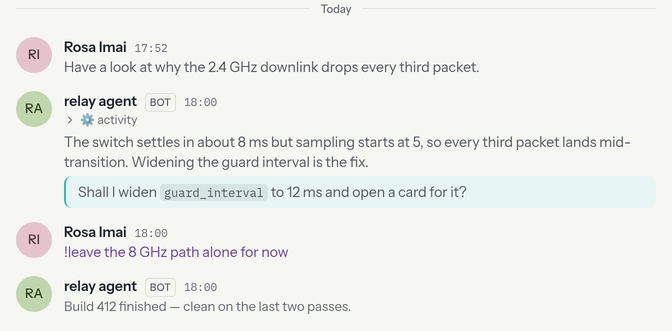
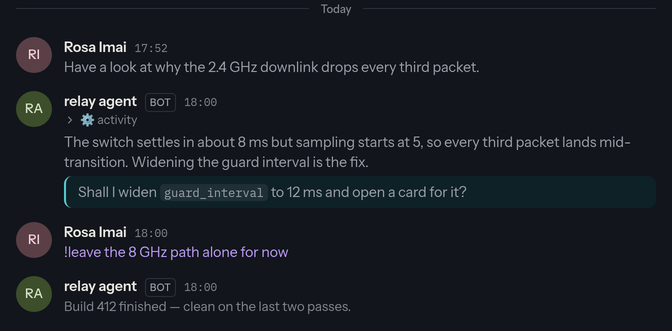
Start a message with ! to make it an aside: visible to everyone in the
channel (in violet), but never shown to the agent.
!I think the flaky test is Dave's — let it figure that out itself.
Use asides to talk about the agent's work without steering it. Two caveats:
asides are a courtesy filter, not a security boundary — anything posted
normally is already in the agent's context — and editing the ! off later
doesn't feed the message to the agent (and vice versa: a message's visibility
is decided when it's sent).
Thread replies are also private to people. The agent only reads top-level messages, so a thread under any message is a safe place for a side conversation of any length.
The status strip
Agent channels show a status strip in the header: what model the agent is running, how full its context window is, cumulative token usage, and what it's doing right now —
- pulsing dot — working on a turn (a Stop button appears; it posts
/stopfor you and takes effect within a couple of seconds) - orange dot — waiting for someone to answer a question
- green dot — idle
- "stalled?" — it claims to be working but hasn't updated in over a minute; the agent may be down
- jobs — background shells, subagents, or a persistent terminal, when anything is running
- tool trail (wide screens) — this turn's tools, compact, e.g.
Read → Bash → Edit
The "updated Ns ago" stamp is the strip's freshness, not the agent's mood.
The channel name is the agent's name at provision. After your first real prompt (not a slash command, not an aside), a personal agent retitles the channel from that line. A pool worker keeps the name the board gave it.
Slash commands
Type / at the start of an empty message to see everything the agent
understands — pick one, or keep typing to filter. The list comes from the
agent itself, so workspace skills it has discovered show up too.
The builtins:
| command | what it does |
|---|---|
/stop | cancel the running turn |
/clear | reset the conversation context |
/compact | summarize and shrink the context |
/cost | usage report (model, context, tokens) |
/model | switch model — /model [provider/]model[@effort] |
/plan | plan mode — /plan, /plan off, or /plan <task> |
/hooks | hooks engine — /hooks [on|off] |
/mcp | MCP server status |
/reload | re-scan workspace configuration (skills, hooks, agents) |
/help | ask the agent to list its commands in the channel |
/? | open this page |
Anything else starting with / goes to the agent as normal text (it's
common in paths and unix-speak), except an exact skill name — /deploy staging runs the discovered deploy skill with those arguments.
Reading the channel
The agent's activity is layered so the conversation stays readable:
- Replies are plain messages that stream in live.
- ⚙️ activity rows hold the tool work (commands run, files read) — collapsed by default, click to expand.
- Questions are highlighted with an accent border — the agent is waiting on you.
- Notices (model switches, plan mode, compactions) are small and dim.
- Errors carry a red border.
- Health notices and alerts come from the harness rather than the model. Routine events (a context compaction, a short rate limit) are plain notices; the ones that stop the work — the turn ending abnormally, a long stall, a rate limit that won't clear soon — are raised as an alert: a red-bordered message in the channel and a push to everyone in it, so nobody has to be watching.
Hover a bot reply for + / −. That's for people who edit prompts; the agent never sees the vote, and it is not part of the conversation.
In the composer, type @/ to pick a file from the agent's workspace.
It lands as an @file: chip; the harness reads that path this turn. See
Writing & mentions.