Getting started
Signing in
ogma has no passwords and no public sign-up. Your account is created by an administrator; you sign in with the email address they used. Sign-in is handled by the shared account service — one session works across all the apps that use it, so if you're already signed in to another ogma app you land straight in chat.
<img class="shot-light" src="/img/help/chat-signin-light.webp" alt="The sign-in page: an email field and an "Email me a code" button, under the note that a six-digit code will be emailed and no password is needed."> <img class="shot-dark" src="/img/help/chat-signin-dark.webp" alt="The sign-in page: an email field and an "Email me a code" button, under the note that a six-digit code will be emailed and no password is needed.">
- Go to the ogma chat URL — you'll be sent to the account service's Sign in.
- Enter your email and choose Email me a code.
- We send a six-digit code to that address. Enter it on the next screen.
- That's it — you're back in chat.
The code is single-use, expires after 10 minutes, and you can request a new one if it doesn't arrive (there's a short wait between requests). If the email address isn't a known account, nothing happens — so double-check the address your administrator set up.
Some installations add a "Verify you are human" check below the sign-in box. It usually confirms on its own; if it asks for a click, give it one before choosing Email me a code. It needs JavaScript — the page says so if yours is turned off.
Running ogma yourself? In development builds the account service shows the code right on the verification screen (a small
dev: NNNNNNhint), so you don't need email configured to try it out.
Finding your way around
The screen has three parts:
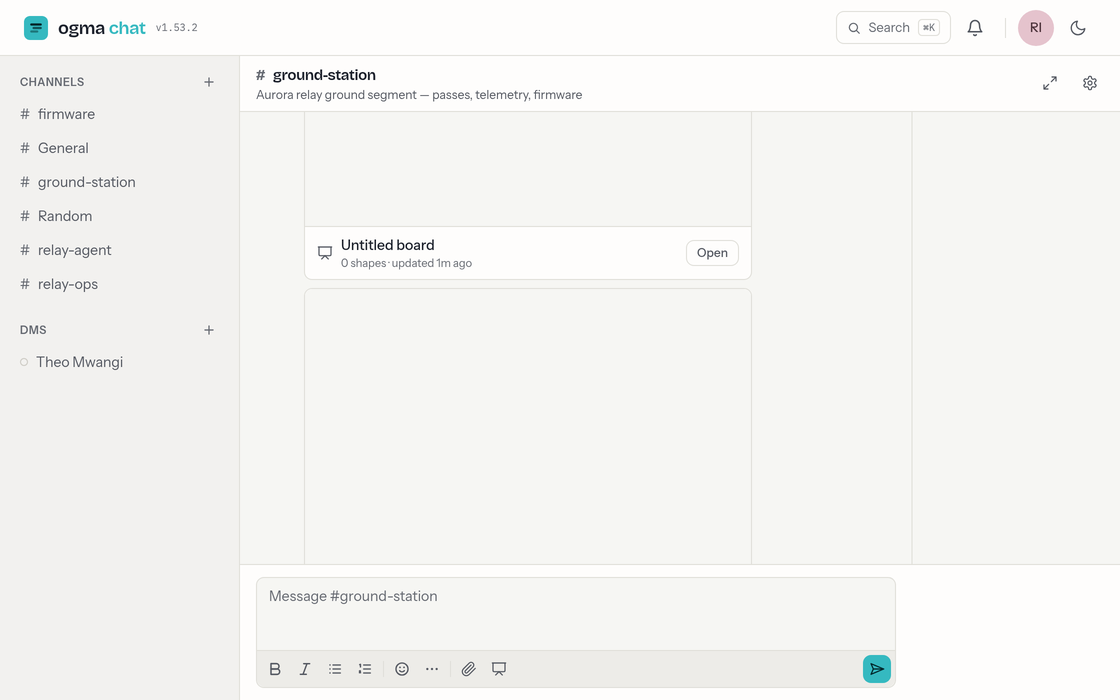
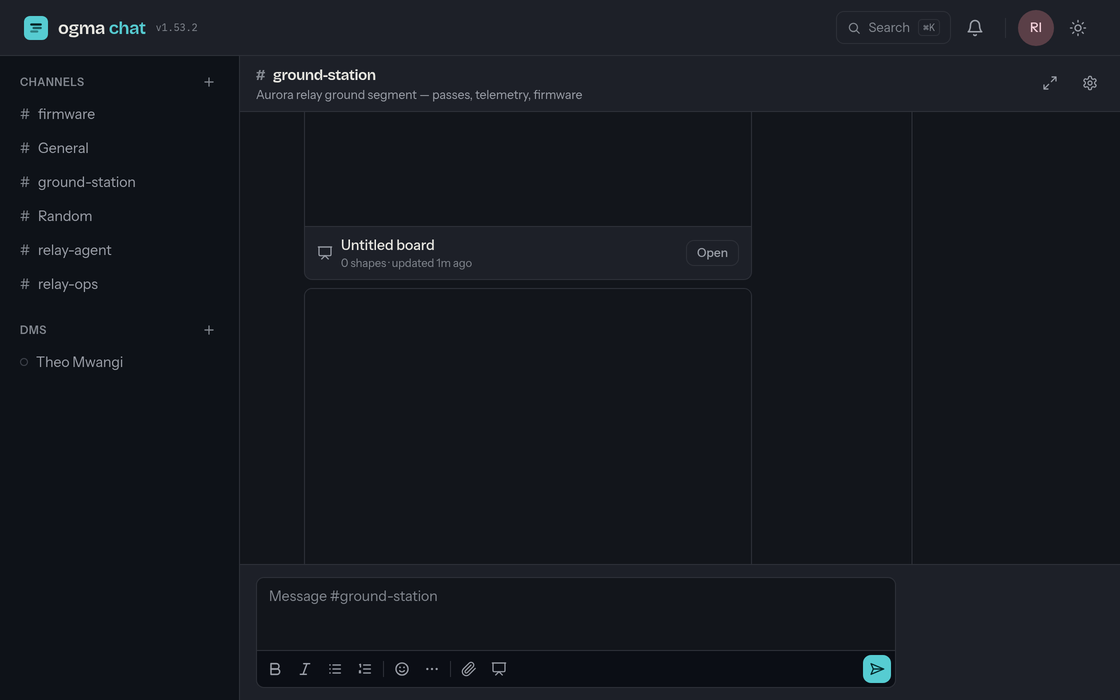
- The sidebar (left) lists the channels you've joined and your direct messages, each with an unread badge when there's something new. At the top are Browse & join channels and a DMs + button for starting a conversation. Drag its right edge to make it wider or narrower.
- The conversation (center) is the channel or DM you have open — its messages, and the composer at the bottom where you write. On a wide window it keeps a comfortable reading width; the ⤢ maximise button in its header stretches it across the full pane (and remembers your choice). Opening a whiteboard always uses the full width.
- Rails (right) slide in when you open a thread or a whiteboard, alongside the conversation rather than on top of it. Drag a rail's left edge to resize it.
At the very top, the header has a Search button (or press ⌘K / Ctrl+K), the bell (your notification inbox), the sun/moon theme toggle, and your avatar menu.
Your first message
- Open a channel — pick one from the sidebar, or choose Browse & join channels to find a public one and Join it.
- Click into the composer at the bottom, type your message, and press Enter for a new line or ⌘/Ctrl + Enter to send.
From here, see Writing & mentions for formatting,
@mentions and #channel references, or Channels to start a
room of your own.
Signing out
Open the avatar menu in the top-right and choose Log out.