Whiteboards
A whiteboard is a shared canvas for sketching, diagramming, and mapping things out together. It lives in a channel and updates live — everyone looking at it sees changes as they happen.
Creating & opening
In the composer, choose New whiteboard. This posts a card into the conversation — a small preview with a title, a shape count, and an Open button. Anyone in the channel can click Open to bring up the board in a pane beside the conversation. The card's preview refreshes as the board changes, so the timeline always shows the latest state.
The board pane can be resized by dragging its edge, and popped out into its own window with the ⤢ button — handy on a second screen.
The tools
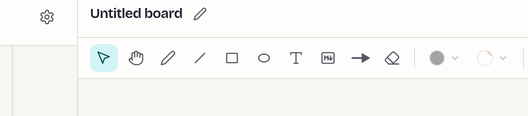
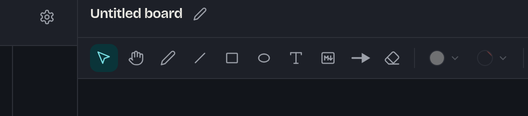
The toolbar down the side of the pane has:
- Select — pick, move, and resize shapes.
- Hand — pan around the canvas.
- Pen — freehand drawing.
- Line, Rectangle, Ellipse — basic shapes.
- Arrow — a connector; long-press the tool to choose the arrowhead style.
- Text — a plain text label.
- Markdown box — a resizable box of rich text (see below).
- Eraser — remove shapes.
Colors come from a fixed palette — ink, black, red, orange, green, blue, and purple — for strokes and fills (fill can also be transparent). Stroke width is 2, 4, or 8, in solid, dashed, long-dash, or dash-dot styles.
Labels. Double-click a rectangle, ellipse, line, or arrow to give it a centered text label — useful for naming boxes in a diagram.
Markdown boxes
A markdown box holds formatted text on the canvas. Double-click it to edit with the same composer you use for messages — headings, lists, code, and so on — then ⌘/Ctrl + Enter to commit or Esc to discard. It's the right tool for notes and legends alongside your sketches.
Moving around
Panning and zooming work even if you're only viewing:
- Pan — hold ⌘/Ctrl and drag, or use the Hand tool.
- Zoom — scroll the wheel.
- Fit brings the whole board into view; Center re-centers it.
Undo, redo & clearing
- Undo / redo — the toolbar buttons, or ⌘/Ctrl + Z and ⌘/Ctrl + Shift + Z (also ⌘/Ctrl + Y). Undo history is per browser tab.
- Clear wipes the whole board. Because it affects everyone, it's limited to channel owners and admins and asks for confirmation first.
Who can do what
Whiteboards follow the channel's roles: anyone who can see the channel can view a board, anyone who can post can draw, you can always edit or remove your own shapes, and owners/admins can edit or remove anyone's and clear the board.